Style Guides allow you to set and enforce rules for your organization's term usage, grammar, and punctuation — ensuring writing is consistent company-wide, at any scale.
Style Guides are available for Business plans only.
Permission Settings
Admins have full control over who can create and modify Style Guides. When restrictions are enabled in Permission Settings, only Admins and Managers can set up or edit Style Guide rules. Writers and other roles can apply Style Guides, but cannot modify them.
How to Access the Style Guide
- Navigate to the Jasper IQ section in the left sidebar of your dashboard.
- Select Style Guides.
- Direct link: agent.jasper.ai/jasper-iq/style-guides
How to Apply the Style Guide
Style Guides can be applied at the time of generation — so your content comes out on-brand from the start, not just after a round of edits.
Applying via the Jasper IQ bar (Chat)
When working in Chat or Canvas, use the Jasper IQ bar above the chat text box to select your Style Guide before generating. This tells Jasper which rules to apply to everything it produces in that conversation.
Applying via Agent Settings (Agents)
When using an Agent, select the Style Guide you want to use in the Jasper IQ section of agent settings panel. The selected Style Guide will be applied to all outputs generated by that agent.
Rewrite with Style Guide
Use "Rewrite with Style Guide" on Canvas documents to apply a Style Guide to any existing content.
Protip: Working with content in another system? Press the ‘+’ sign in the middle/bottom of any Canvas to create a new Canvas Document and paste your content in there. Then, you can use “Rewrite with Style Guide” to apply your style guide.
How to Set Up your Style Guide
Grammar & Punctuation
Grammar & Punctuation settings are the foundation of every Style Guide. This is where you encode your brand's standardized writing mechanics — the stylistic choices an editor would flag every single time.
Start here first when building or updating a Style Guide. Review your existing brand guidelines and enable every supported rule that clearly appears in your guide. If a rule exists in both your brand guide and Jasper's built-in options, always configure it here rather than in Custom Style Instructions.
Available Grammar & Punctuation settings include:
- Style Presets — AP or Custom
- Writing Style — Prefer active voice; use contractions where possible
- Titles & Headings — Use title case in headings and titles
- Punctuation — Oxford comma, em-dash, en-dash, semicolons, exclamation points, spacing after periods, and more
- Ampersand Usage — Control use of & and +
- Dates & Numbers — Spell-out thresholds, comma formatting for large numbers
Note: When a Grammar & Punctuation setting is toggled off, Jasper sends no related instruction to the model at all. For example, toggling off "Use Title Case" doesn't tell the model to use sentence case — it tells the model nothing about casing. Be intentional about what you enable.
Rules
Rules operate like an automated find-and-replace. Unlike Grammar & Punctuation settings or Custom Style Instructions, Rules are not context-aware, but they apply 100% consistently, every time a word or phrase appears in generated output, without exception.
Rules are applied during streaming generation, sentence by sentence. The model never "forgets" them, and users never see partial compliance. If a Rule works once, it will work every time.
Supported Rules
-
Avoid in outputs: uses an LLM to replace the term with an alternative.
- E.g. Griffin → Mythical Creature
-
Abbreviate after first use: adds abbreviation in parentheses on first use, then substitutes the abbreviation thereafter.
- E.g. "customer acquisition costs → customer acquisition costs (CAC) → CAC
-
Always lowercase: replaces the term with its all-lowercase version.
- E.g. Lowercase → lowercase
-
Always uppercase: replaces the term with its all-uppercase version.
- E.g. uppercase → UPPERCASE
-
Replace with: replaces the term with a specific word or phrase.
- E.g. replace me → replaced
-
Use exact case: replaces the term with a precisely cased version.
- E.g. federal bureau of investigation → Federal Bureau of Investigation
-
Always abbreviate: replaces the term with the abbreviation every time it appears.
- E.g. customer acquisition costs → CAC
All target words or phrases are case-insensitive. A rule targeting "we" will also trigger on "WE" or "We."
Implementation tips:
- Identify any term that must always appear the same way — create a Rule for it.
- Use Rules whenever context is not required. If the rule only applies under certain conditions (e.g., "only when referring to first-year students"), it belongs in Custom Style Instructions instead.
Custom Style Instructions
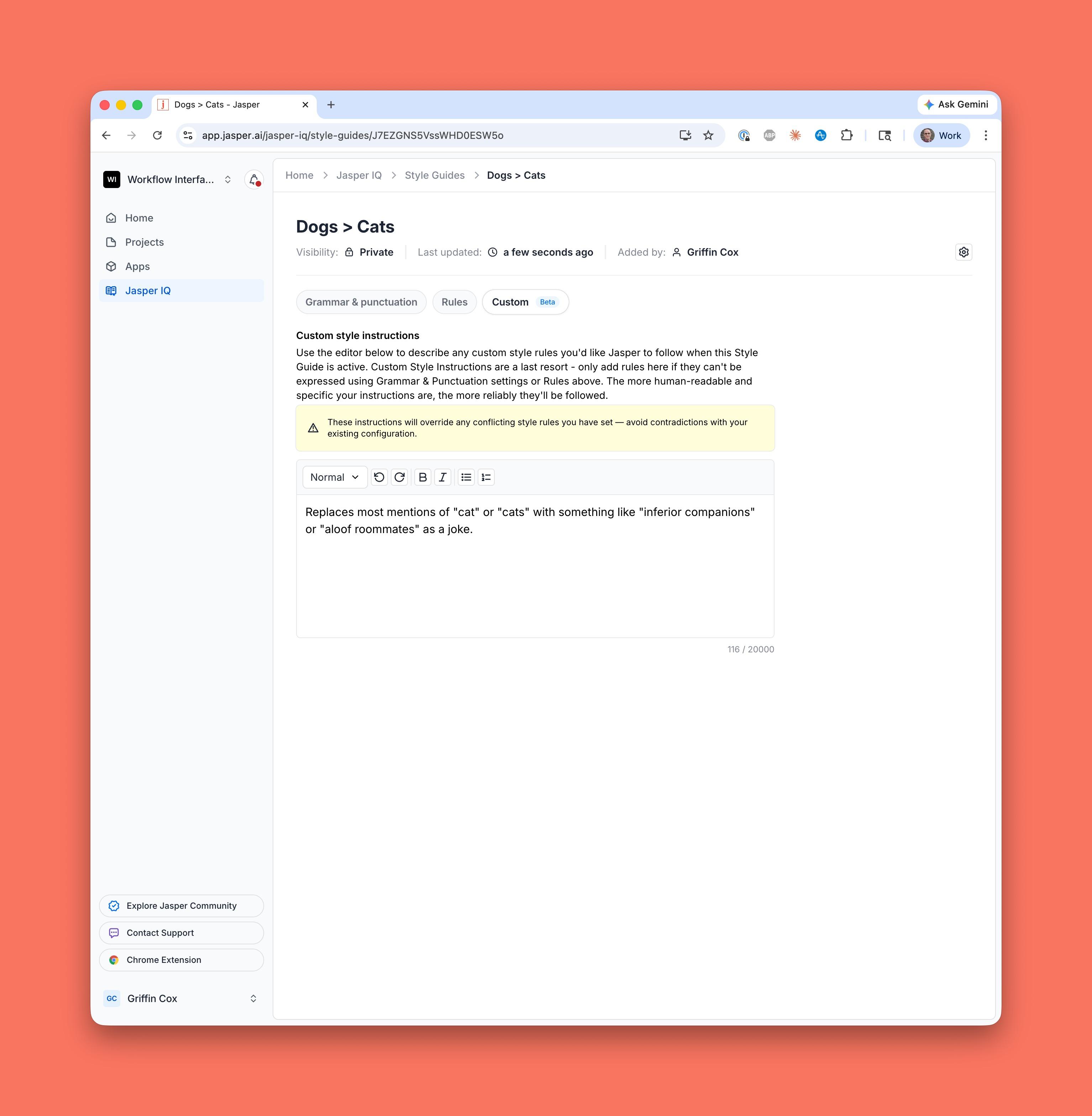
Custom Style Instructions are the flexible layer of your Style Guide. Use this section only when a requirement cannot be expressed using Grammar & Punctuation settings or Rules.
Unlike Rules, these instructions are interpreted by the model — which means they are context-aware and can handle nuanced, conditional, or semantic requirements. That power comes with a tradeoff: they are not perfectly consistent.
Good use cases for Custom Style Instructions:
- Conditional terminology (e.g., "use 'first-year' instead of 'freshman' only when referring to undergraduates")
- Mixed casing rules that depend on content type or placement of text
- Editorial preferences that require semantic understanding
- Formatting conventions for times, dates, or people's titles
How to write effective instructions:
- Use clear markdown structure — headings or bullet points help
- Do not paste your entire human-oriented style guide here
- Treat this as a last resort, not a catch-all
Important constraints: Custom Style Instructions have a 20,000 character limit and compete with many other prompt instructions at generation time. Overloading can degrade output quality. Consistency is the core value of any style guide — use this section sparingly.
Best Practices
Following a clear hierarchy when building your Style Guide will give you the most consistent, reliable results:
- Grammar & Punctuation first — If a rule is supported here, always configure it here.
- Rules second — Use for any word or phrase that must always appear a specific way, without exception.
- Custom Style Instructions last — Only for requirements that genuinely can't be expressed earlier in the stack.
Additional tips for keeping your Style Guide healthy:
- Set Style Guides as defaults wherever possible so users don't have to remember to apply them.
- Update your Style Guide when source documentation changes — if your brand guide gets updated, your Jasper Style Guide should too.
- Re-test rules after edits using sample content to catch unintended behavior.